
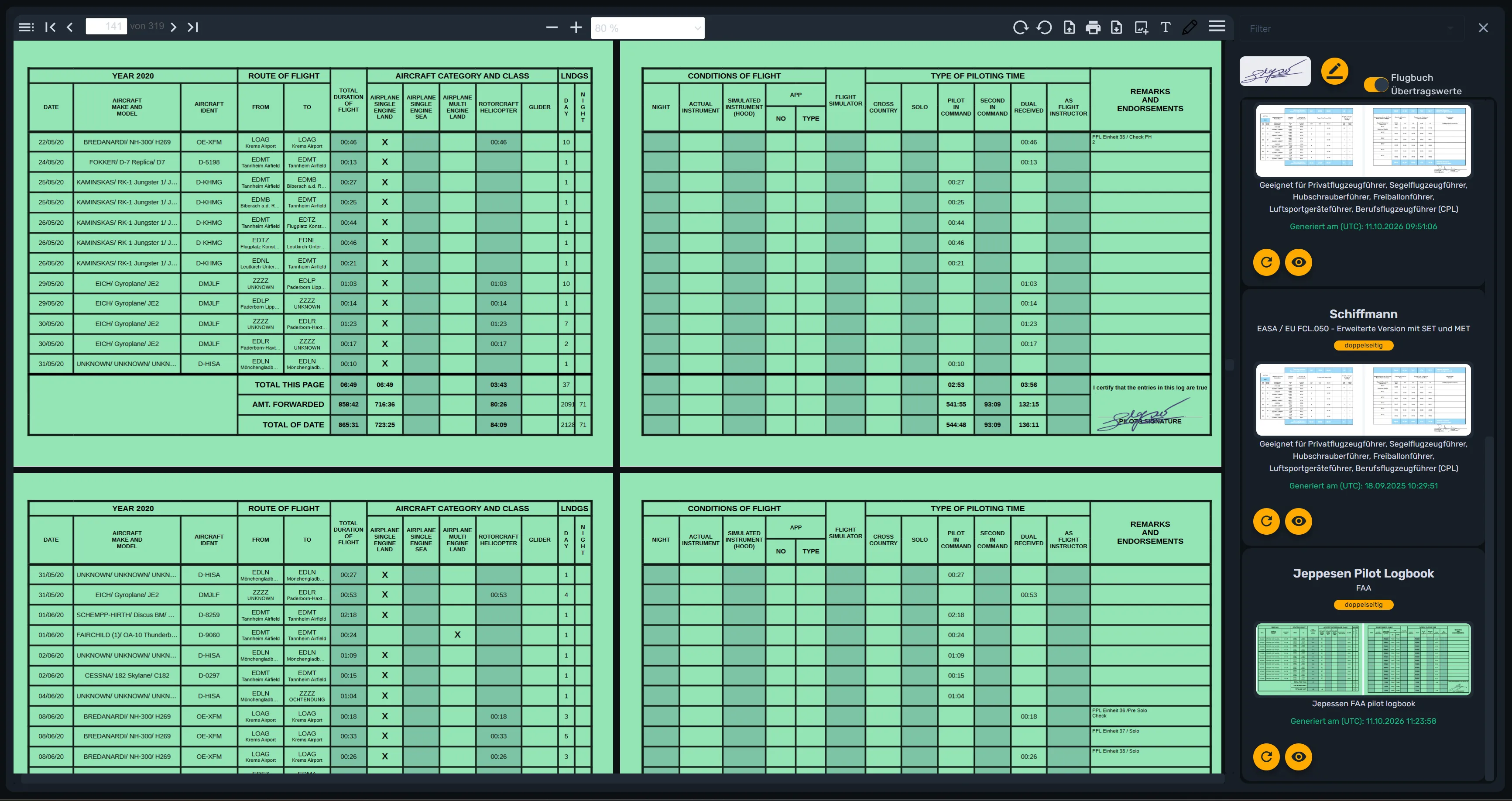
Need your logbook for your next checkride, for an employer, or just as a printed backup? cloudlog.aero turns your logged flights into a ready-to-print logbook PDF with a single click — using one of several templates, optionally signed, and filtered down to exactly the flights you need. This guide walks you through it step by step.
What the logbook PDFs offer
Under Printouts you’ll find several ready-made logbook templates to choose from. Each template shows a thumbnail preview, a short description, and whether it prints one-sided or double-sided — depending on how many columns and rows per flight the template uses. You generate each template independently of the others and can re-generate it at any time with your latest data.
What you need
- A cloudlog.aero account with flights already logged — an empty logbook produces an empty PDF.
- Optionally, a saved signature, if the template should be output signed.
- Optionally, a saved filter, if you don’t want to export your whole logbook but only a slice of it (e.g. a date range or a specific aircraft).
Step by step: generate a logbook PDF
1. Go to the “Printouts” page
In the dashboard, open Printouts from the left-hand navigation. On the right you’ll find the list of available logbook templates, and — on larger screens — the built-in PDF preview right next to it.
2. Optional: filter your flights
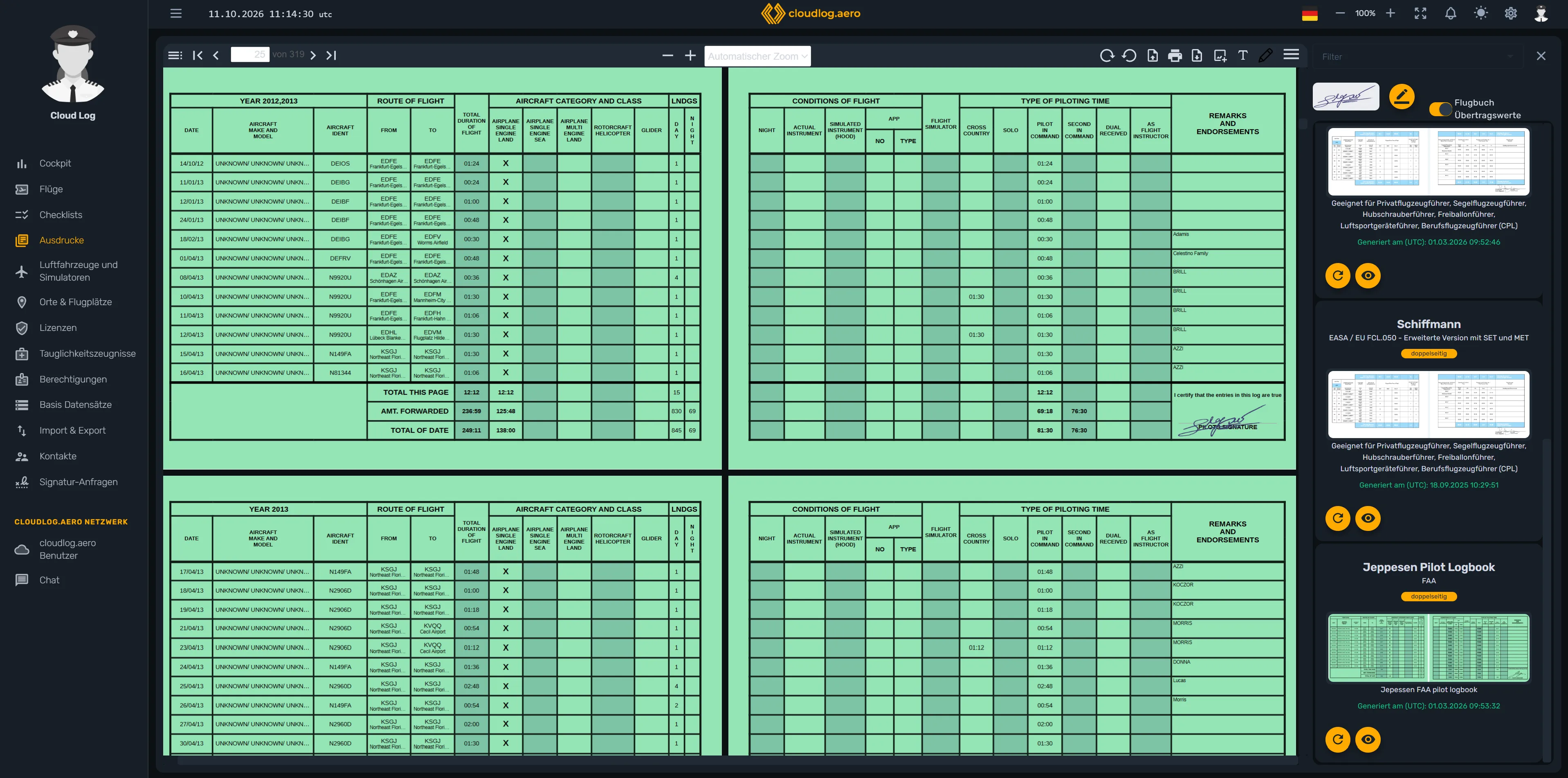
Use the Filter above the template list to limit which flights are included in the PDF, for example by date range, aircraft or pilot function. Without a filter, all your flights go into the printout. The X next to it clears the selection again.
3. Optional: add a signature
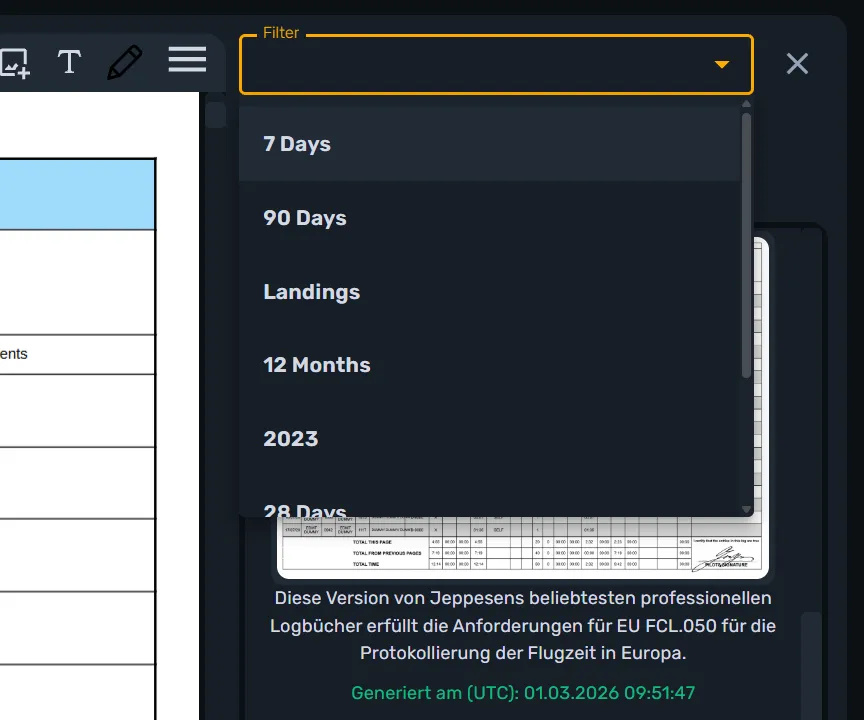
Below that, cloudlog.aero shows your saved signature, if you have one — otherwise the note “Please enter or upload a signature.” The pencil button next to it, tooltipped “Change signature”, opens the dialog where you can draw or upload a signature. It’s then applied to every template that includes a signature field.
4. Account for carry-over values (optional)
If you set up carry-over values for already-flown hours when configuring your account, you’ll also see the Logbook Carryover Values toggle. Turning it on includes those values as running totals in the generated PDFs — just like in a handwritten logbook you’re continuing.
5. Generate a template
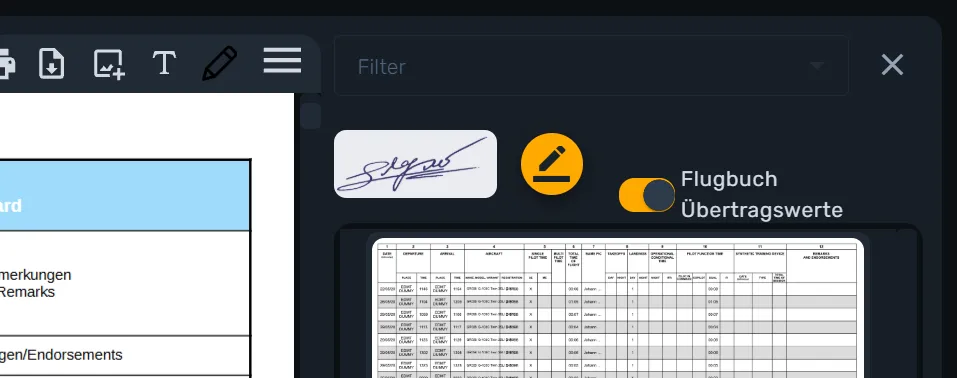
Scroll the list to the template you want and click the round button tooltipped “Generate report” to generate the PDF with your current flight data (and your selected filter and carry-over values). While it’s being generated, a progress indicator shows how many pages are already done; once finished, you’ll see the timestamp of the last generation under “Generated at (UTC)”.
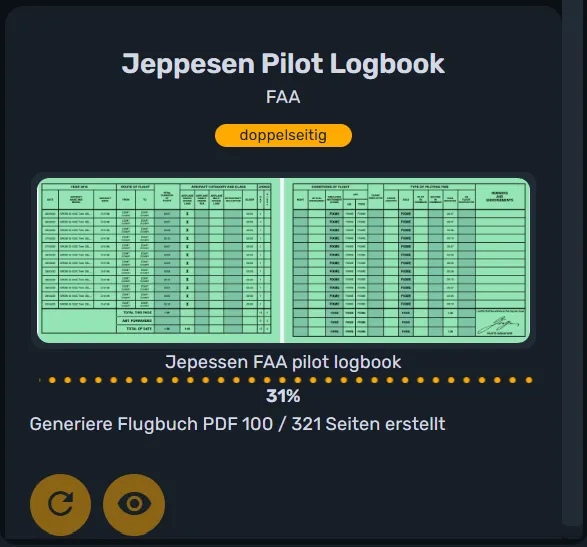
6. View the PDF
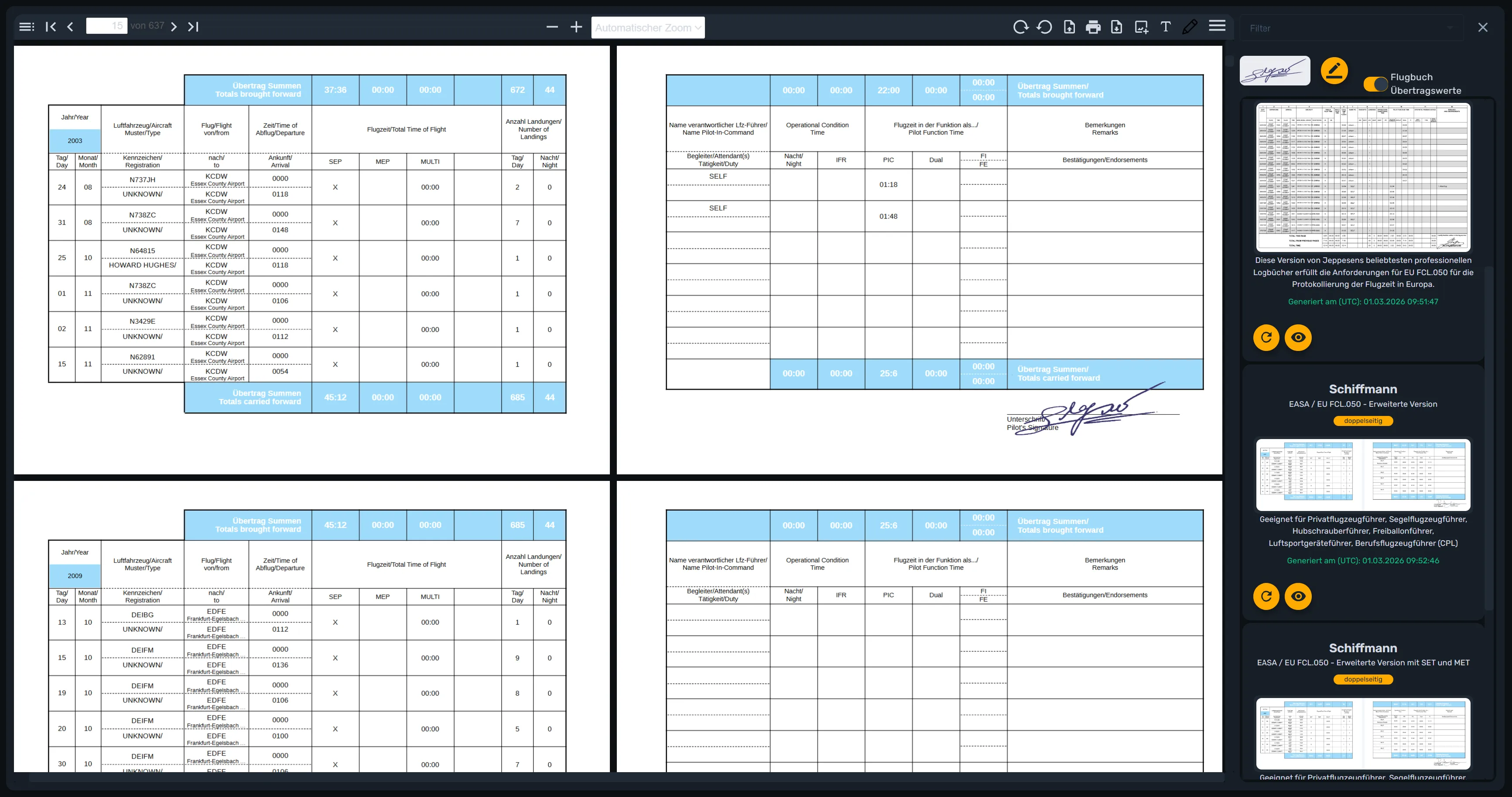
Once a template has been generated, click the button tooltipped “View last report” to open the preview. On desktop, the PDF opens directly in the built-in viewer next to the template list — double-sided templates automatically switch to spread mode. On a mobile device, it opens in its own full-screen dialog with the same PDF instead.
7. Save as PDF or print it
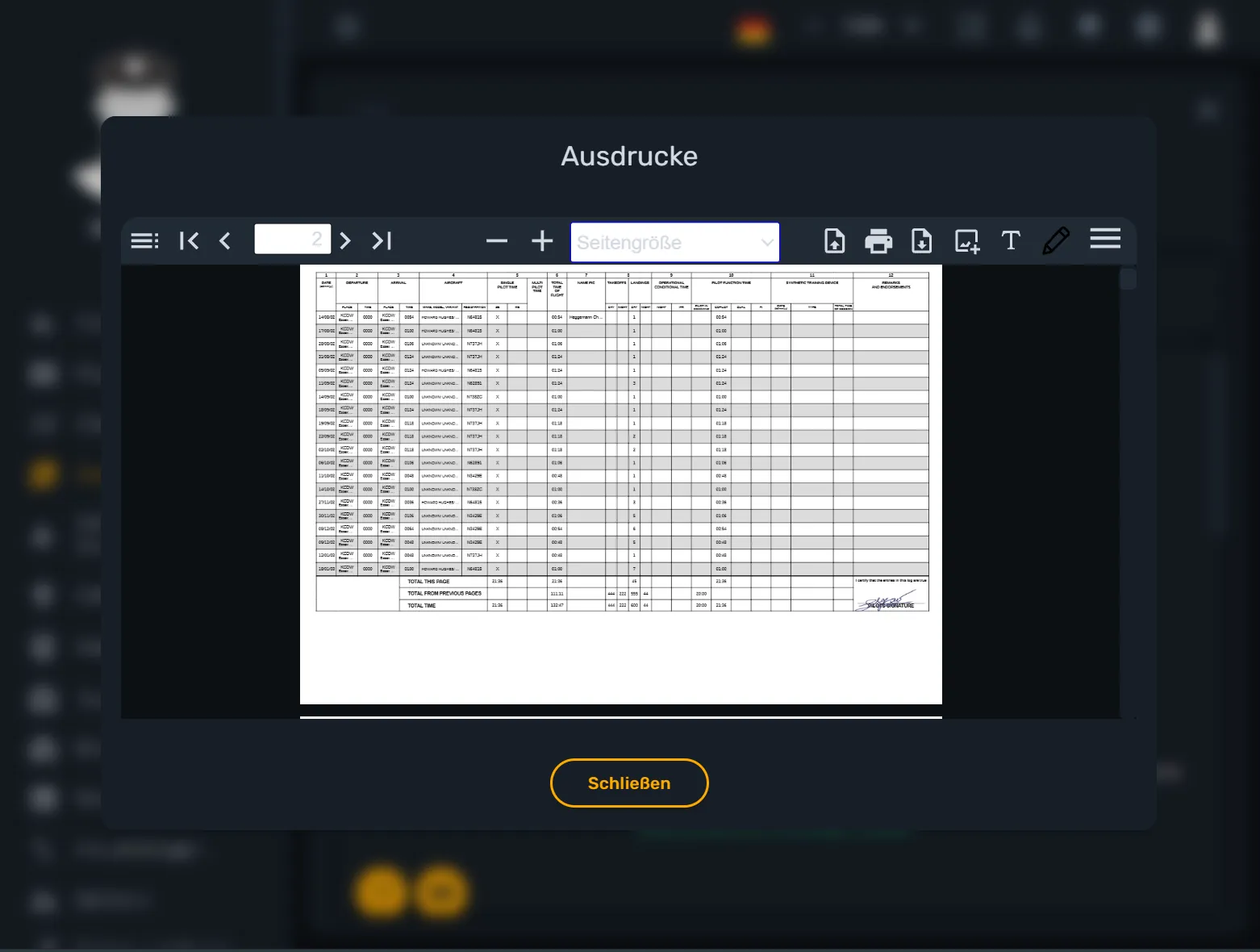
The toolbar right above the PDF preview also includes a Print and a Download icon, next to zoom, page navigation and search. The Print icon opens your device’s print dialog, while the Download icon saves the generated logbook PDF directly to your computer or mobile device — whether you’re viewing the preview on desktop or in the full-screen dialog on a mobile device.
Common questions
- Which flights end up in the PDF if I don’t set a filter? All flights logged in your logbook, sorted according to the chosen template.
- Do I need to regenerate every template separately? Yes — each template is generated independently and shows its own state (date of the last generation).
- What happens to the signature if I haven’t added one? The template is still generated, just without the signature field — you can add a signature at any time and regenerate the template.
Conclusion
Going from your digital logbook to a signature-ready PDF takes just a few clicks in cloudlog.aero: pick a template, optionally set a filter and signature, generate it, then download or print it straight from the preview’s toolbar — done. Handy for your next checkride, for an employer, or simply as a paper backup.
No account yet? Set up your digital logbook at app.cloudlog.aero.