
Creating a flight from the ADS-B network: step by step in cloudlog.aero
4 min read
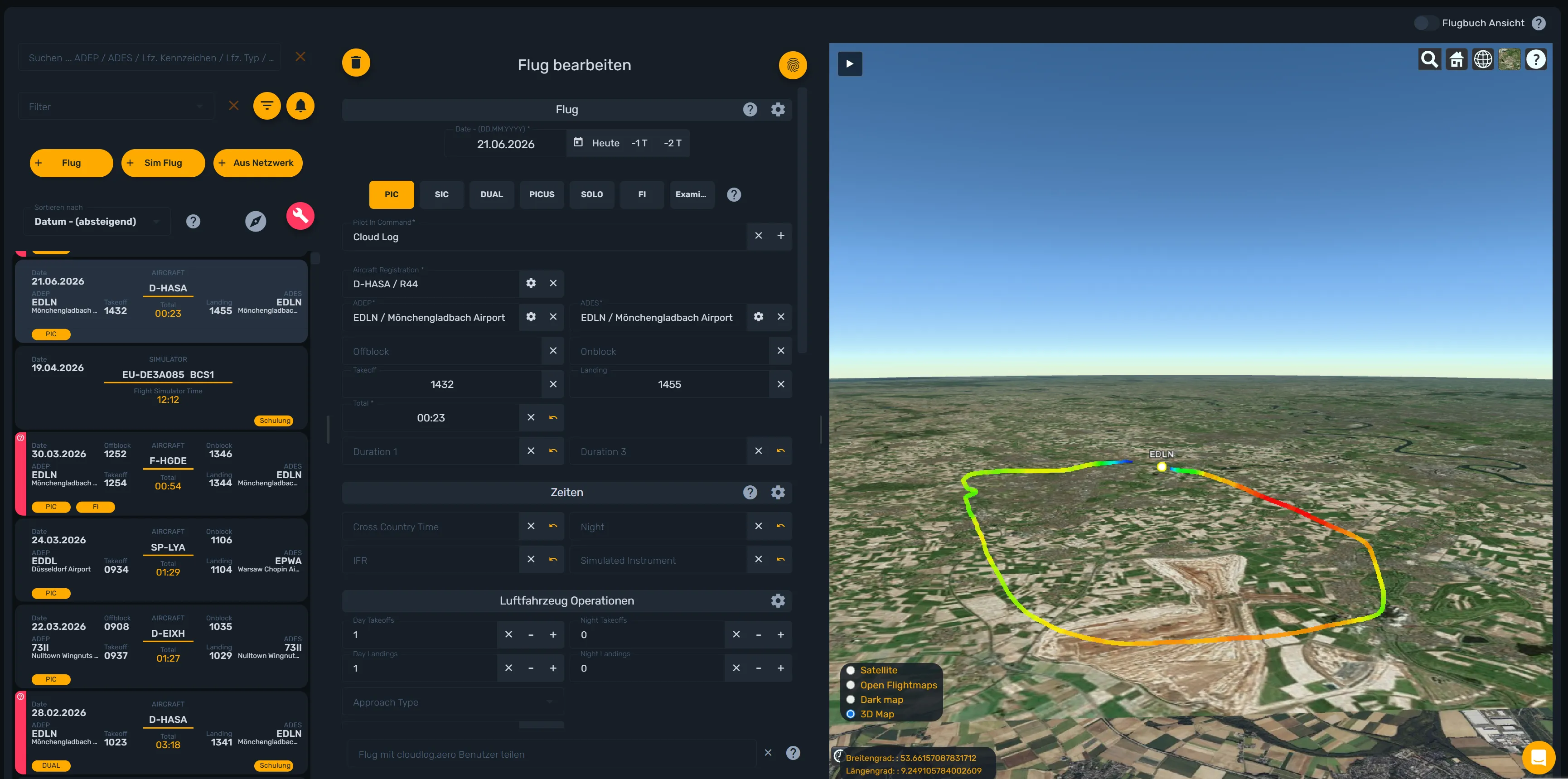
You’ve landed, the aircraft is already back in the hangar — and the logbook entry is still missing? With the flight network in cloudlog.aero you no longer have to type in off-block and on-block times, airfields and flight time by hand. This guide shows you, step by step, how to pull an already flown flight from the ADS-B/MLAT network into your logbook.
What the flight network does
The flight network combines position data from ADS-B and multilateration networks — including Flightradar24 and SeRo — and calculates individual flights that can be matched to your aircraft. You search by registration and date range, cloudlog.aero shows you what the network holds for that aircraft, and you take over the matching flight with one click — track included, if you want it.
What you need
- A Pro subscription for cloudlog.aero. The flight network is part of the Pro plan; without the matching permission, the button simply doesn’t appear in the flights overview.
- A Mode S transponder on board the aircraft that was flown.
- Reception along the route. Over sparsely populated terrain or deep in a valley, a track can be patchy or missing entirely — that’s network coverage, not cloudlog.aero.
Step by step: take over a flight from the network
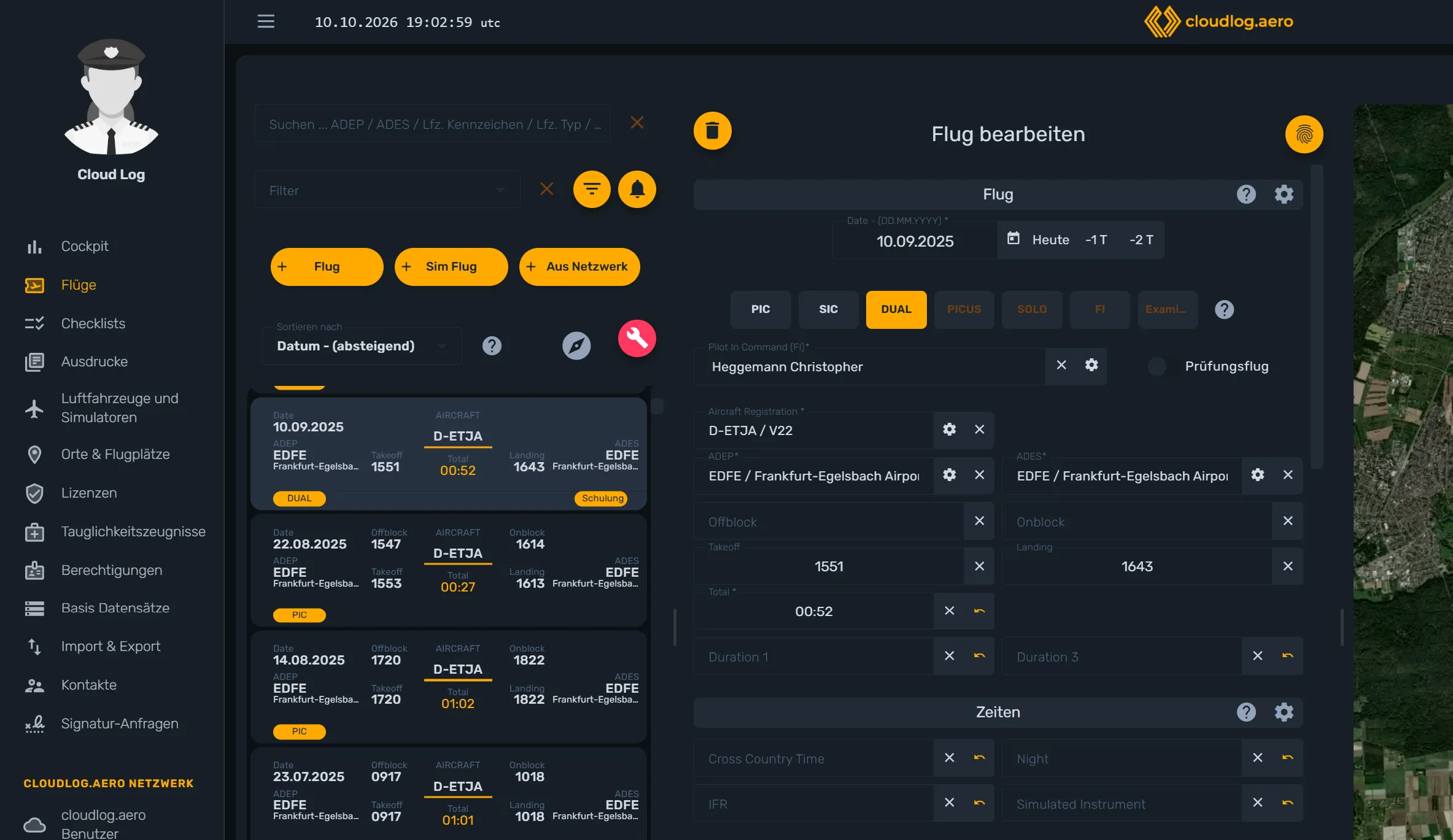
1. Open the flights overview and choose “From Network”
In cloudlog.aero, open your flights overview (Dashboard → Flights). Next to Flight and Sim Flight you’ll find the From Network button. It’s only visible if your account has the flight network permission.
2. Enter a date range and a registration
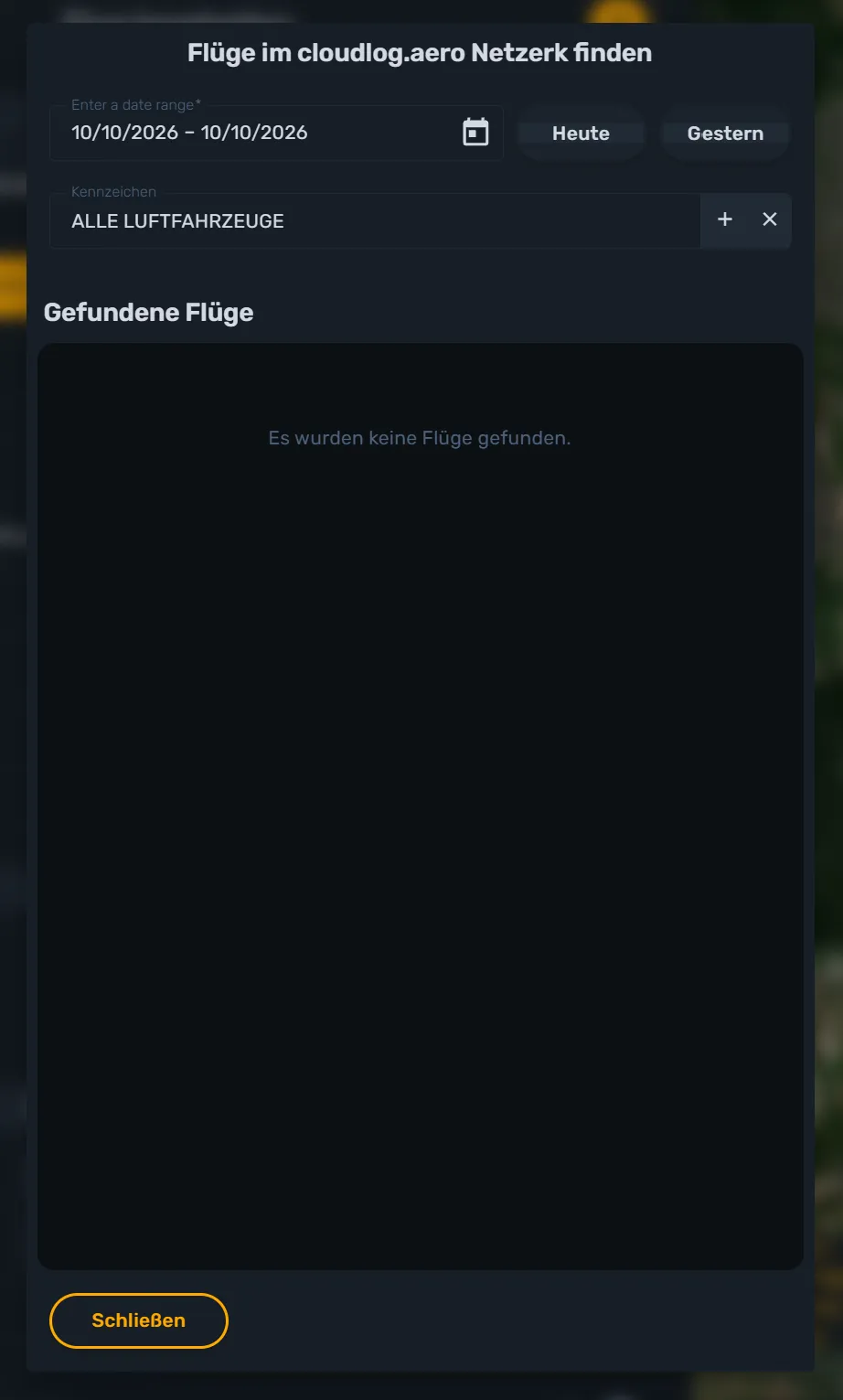
In the dialog “Find flights in cloudlog.aero network” that opens, start with the date range:
- Pick a start and end date freely via the date range field, or
- use the quick options Today or Yesterday.
Below that, you can optionally pick a registration from the aircraft selector. Leave it on “All Aircraft” and cloudlog.aero searches flights for all your registered aircraft within the chosen period. If your aircraft isn’t registered yet, you can add it directly from the dialog.
3. Review the search results
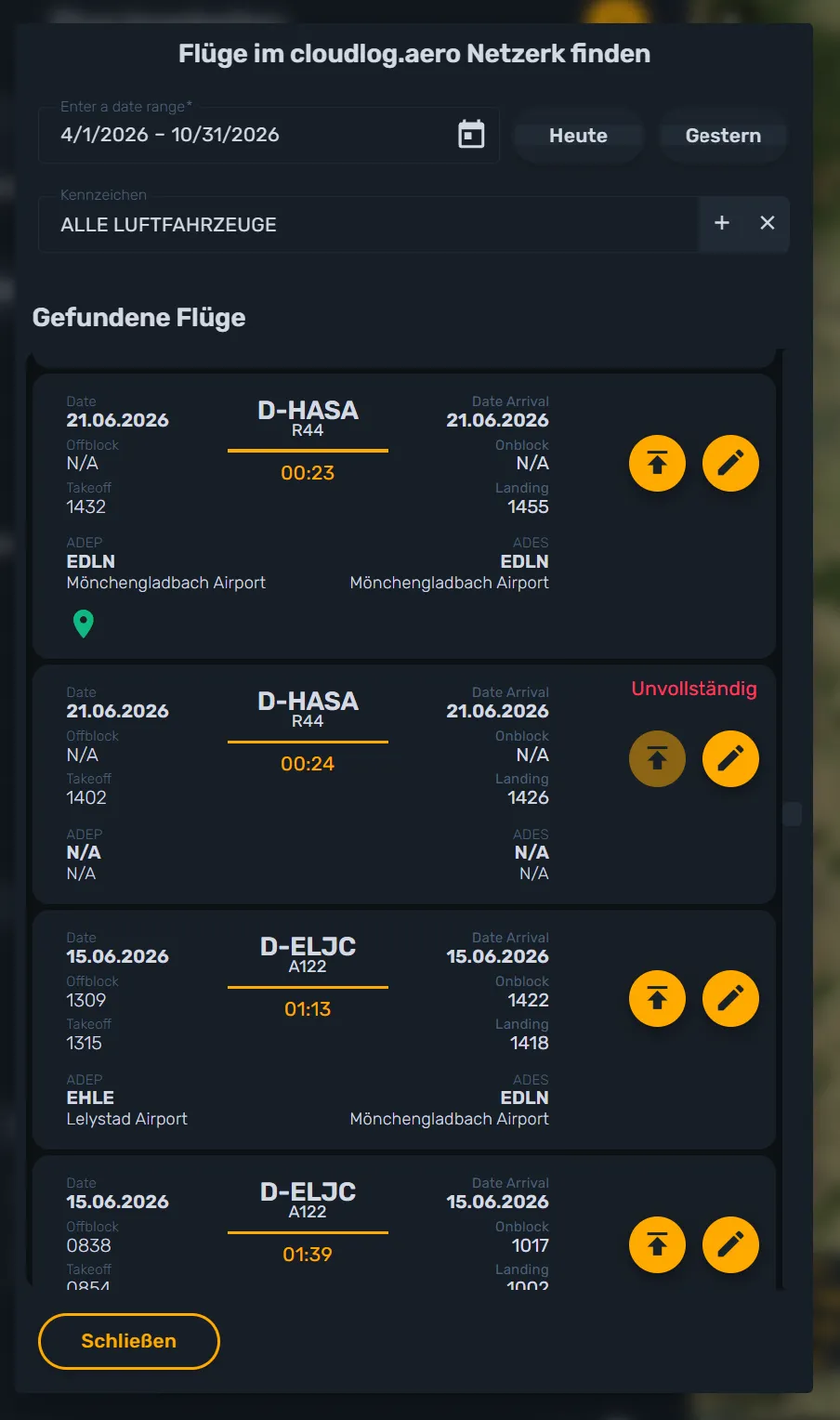
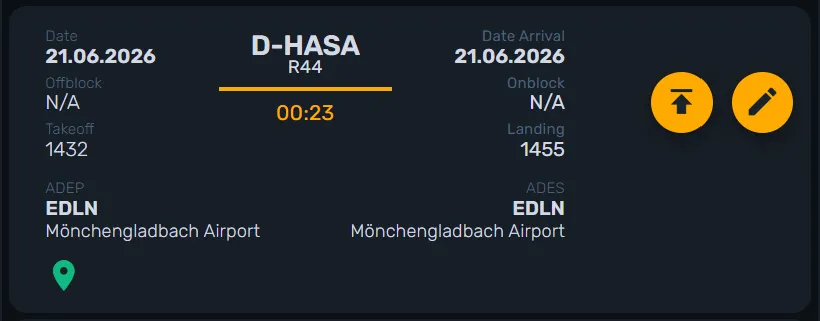
As soon as you confirm the date range or pick a registration, cloudlog.aero searches automatically and lists the flights it found below. For each result you see:
- date, plus off-block/takeoff and on-block/landing time,
- registration and aircraft type,
- the calculated flight time,
- departure and arrival airport (ICAO code and name).
A green position icon tells you that a track is available for that flight. If a result is missing required fields such as airports or times, cloudlog.aero marks it as “Incomplete” — a direct import isn’t possible in that case.
4. Import the flight or take it over into the editor for review
For every complete result you have two options:
- Import flight (upload icon): the flight is saved to your logbook immediately with all the data found.
- Add to the editor (pencil icon): the flight is loaded into the flight editor so you can still adjust pilot function, remarks or individual times before saving.
If an entry already exists in your logbook for that date range and registration, cloudlog.aero warns you instead of creating a duplicate.
5. View the track
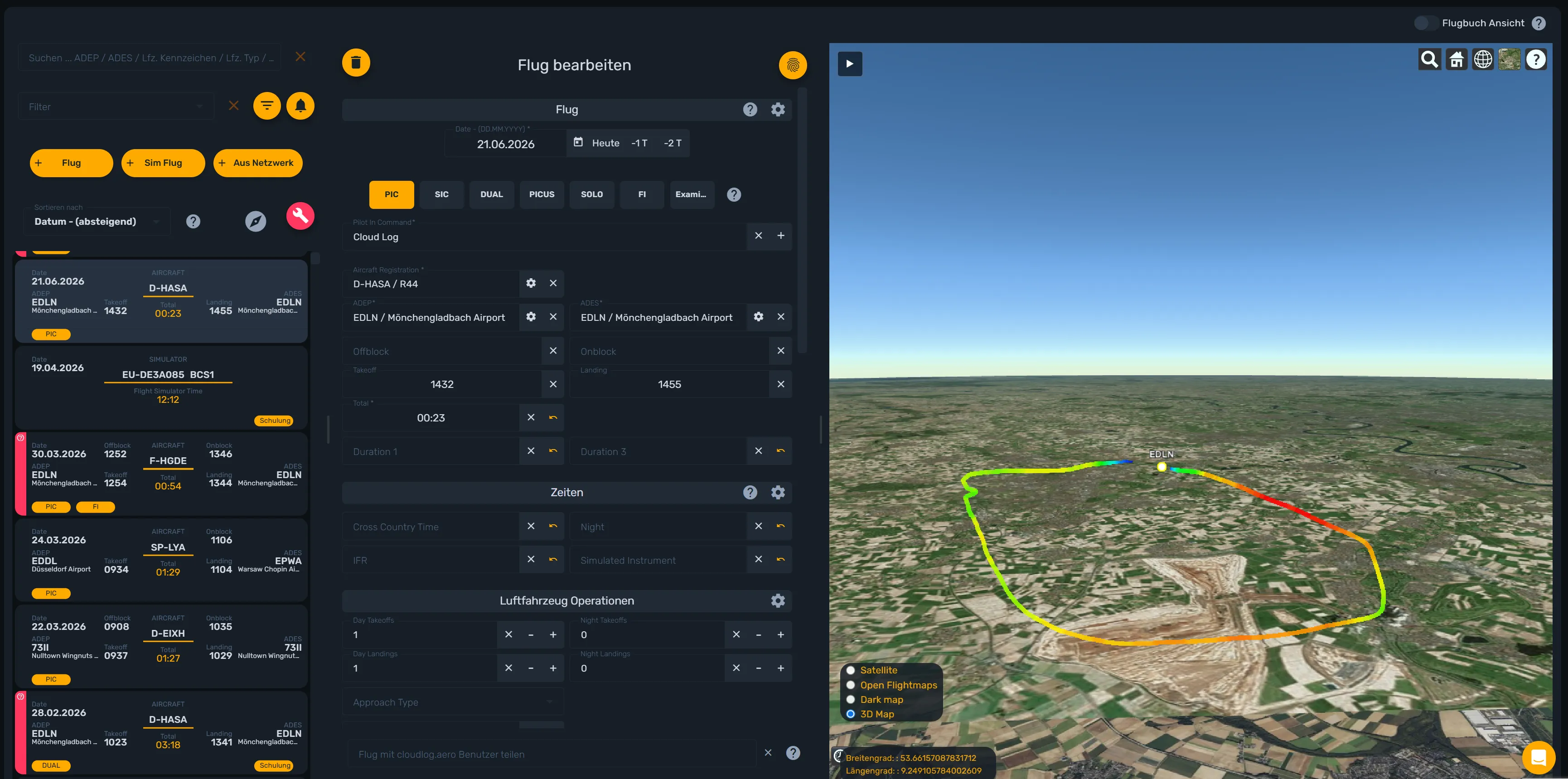
If the imported flight has a track, you’ll find it afterwards on the map and on the 3D globe in the flight detail view — altitude, speed and heading included.
Flew as a pair?
If you flew as a two-pilot crew, the same real-world flight is only recognised once in the network. The second pilot doesn’t need to search again — they get the same track as soon as they also take over the flight through the flight network.
Common issues
- “No flight(s) found.” Check the date range and registration. If the flight was outside network coverage or the transponder wasn’t received, it won’t show up in the network.
- “No position data available.” The headline figures for the flight exist, but there’s no continuous track — usually due to patchy network coverage along the route.
- “This flight already exists in your logbook.” cloudlog.aero has detected that you already logged this flight and prevents a duplicate entry.
- A result is marked “Incomplete”. Required fields such as departure or arrival airport are missing. Use Add to the editor in this case to fill in the missing details by hand.
Conclusion
The flight network turns the chore of catching up on forgotten flights into a single click: enter a date range or registration, pick the matching flight, import it or send it to the editor for review — done, track on the map and 3D globe included. What it still takes is a Mode S transponder on board and reception along the route.
No Pro subscription yet? Try cloudlog.aero and the flight network at app.cloudlog.aero.