
Using Your Pilot File Properly: Managing Licenses, Medicals and Ratings in cloudlog.aero
7 min read

At a glance
The pilot file keeps your personal data in one place: address and signature under General, licenses, medicals, ratings and language proficiency (EASA and FAA) under Licenses and ratings, plus your carryover values. Color-coded validity indicators and notifications warn you before documents expire. The sections for licenses and ratings are part of Pro.
License, medical, class rating, language endorsement: when does what expire, and where is your license number when a form asks for it? In cloudlog.aero, all of it lives in the pilot file, right next to your logbook. It’s also where you store your address and signature for the logbook PDFs, and your carryover values from a previous logbook. This guide shows you how the pilot file is organized and how to keep it up to date.
What the pilot file offers
You open the pilot file via the Pilot file menu item in the left-hand navigation. It is divided into three tabs:
- General: your address and your signature.
- Licenses and ratings: licenses, medicals, class and type ratings, instrument ratings, radio telephony certificates and language proficiency, each under EASA or FAA.
- Carryover Values: totals from a previous logbook that can be included in your calculations.
For every entry with an expiry date, cloudlog.aero shows its validity status. If something is about to expire or has already expired, you also get a notification.
What you need
- A cloudlog.aero account. The General and Carryover Values tabs are always available to you.
- For the Licenses and ratings tab, you need a membership that includes the pilot file (Pro). If you don’t have one, you only see the other two tabs.
- Your documents at hand: license number, issuing authority, issue and expiry dates.
Step by step: setting up your pilot file
1. Set your operating mode: EASA, FAA or both
Which rule sets the pilot file shows depends on your Operating mode. You choose it in the Settings under Operating mode. EASA, FAA or both at the same time are possible. If no operating mode is active, the pilot file shows EASA. If both are active, a Rule set switch between EASA and FAA appears in the “Licenses and ratings” tab.
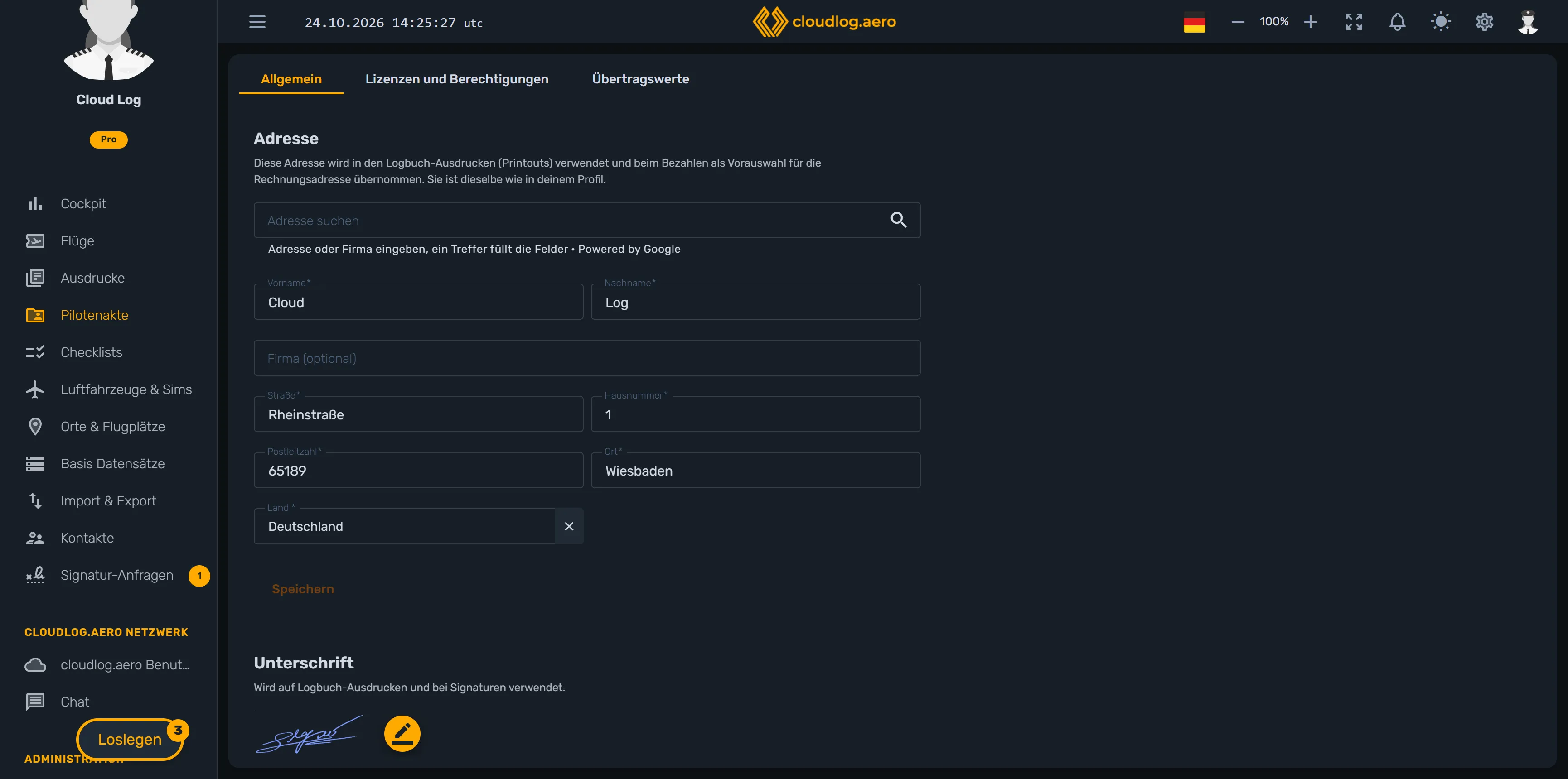
2. Enter your address
In the General tab, you’ll find the Address section at the top. Enter first name, last name, street, house number, postal code, city and country. Only the company is optional. Use Save to apply your entries; the button only becomes active once all required fields are filled in and you have changed something.
The address appears as the name and address of the license holder on the title page of your logbook printouts. When you take out a membership, it is also pre-selected as the billing address. It is the same as in your profile. If it’s missing, cloudlog.aero asks you for it when you generate a logbook PDF.
3. Add your signature
Below that is the Signature section. If you have already stored one, you’ll see it here. Otherwise, you’ll see the prompt “Please enter or upload a signature.” Using the pencil button with the tooltip “Change signature”, you draw or upload your signature. It is printed on the logbook printouts below the certification and is used for signatures.
4. Create a license
Switch to the Licenses and ratings tab and select the Licenses section. Below the heading, there is a short explanation of the legal basis, for EASA for example Part-FCL.
On large screens, you see the list of your entries with a filter field on the left and the form on the right. On a smartphone, you use the + next to the filter field to create a new entry in a dialog. In the form, you fill in:
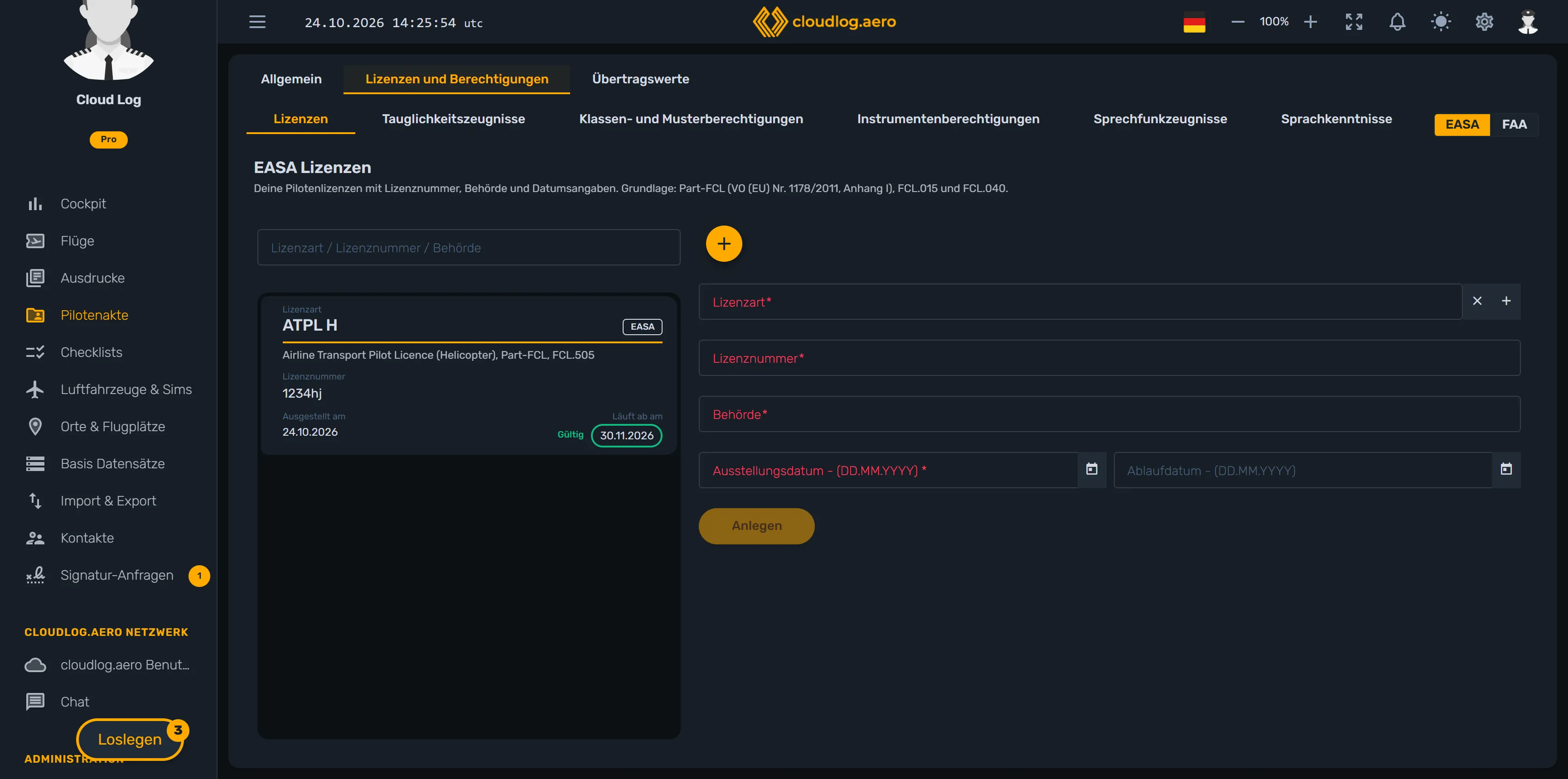
- License: a selection from the EASA licenses (for example LAPL, PPL, CPL, ATPL) or FAA certificates (for example Private, Commercial, ATP).
- License Number and Authority: both are required fields.
- Date of Issue: required field.
- Expiration Date: optional. EASA licenses and FAA certificates do not expire. You only need the expiry date for time-limited certificates such as FI or FE.
Use Create to save the entry; for an existing entry, the button is called Save. If the expiry date is before the issue date, cloudlog.aero points this out and does not save.
5. Enter your medical
In the Medicals section, you select the class (EASA: Class 1, Class 2, LAPL; FAA: First-, Second-, Third-Class, BasicMed). You can also record the Doctors remark as well as issue and expiry dates. Enter the expiry date so that cloudlog.aero can warn you in good time.
6. Record ratings
There are three sections for ratings:
- Class and type ratings: You look them up in the list of ratings for the selected rule set. The expiry date is optional. FAA ratings do not expire, so the issue dates are optional there as well.
- Instrument ratings: Here you create your IR. Under EASA the expiry date is required, the issue date is optional.
- Radio telephony certificates: Under EASA, they are regulated nationally (for example AZF or BZF); under FAA, they are the FCC radio certificates. Issue and expiry dates are optional.
You enter a renewal as a new validity period of the same rating. The issue date must be before the expiry date. The new period must not overlap with an existing period of the same rating, otherwise cloudlog.aero will point this out.
7. Enter language proficiency (EASA only)
In the Language proficiency section, you record your language endorsement: Language, Level (4 Operational, 5 Extended or 6 Expert), issue and expiry dates, and Remarks. For levels 4 and 5, the expiry date is required, because validity depends on the level. This section exists only for EASA; under FAA it does not apply.
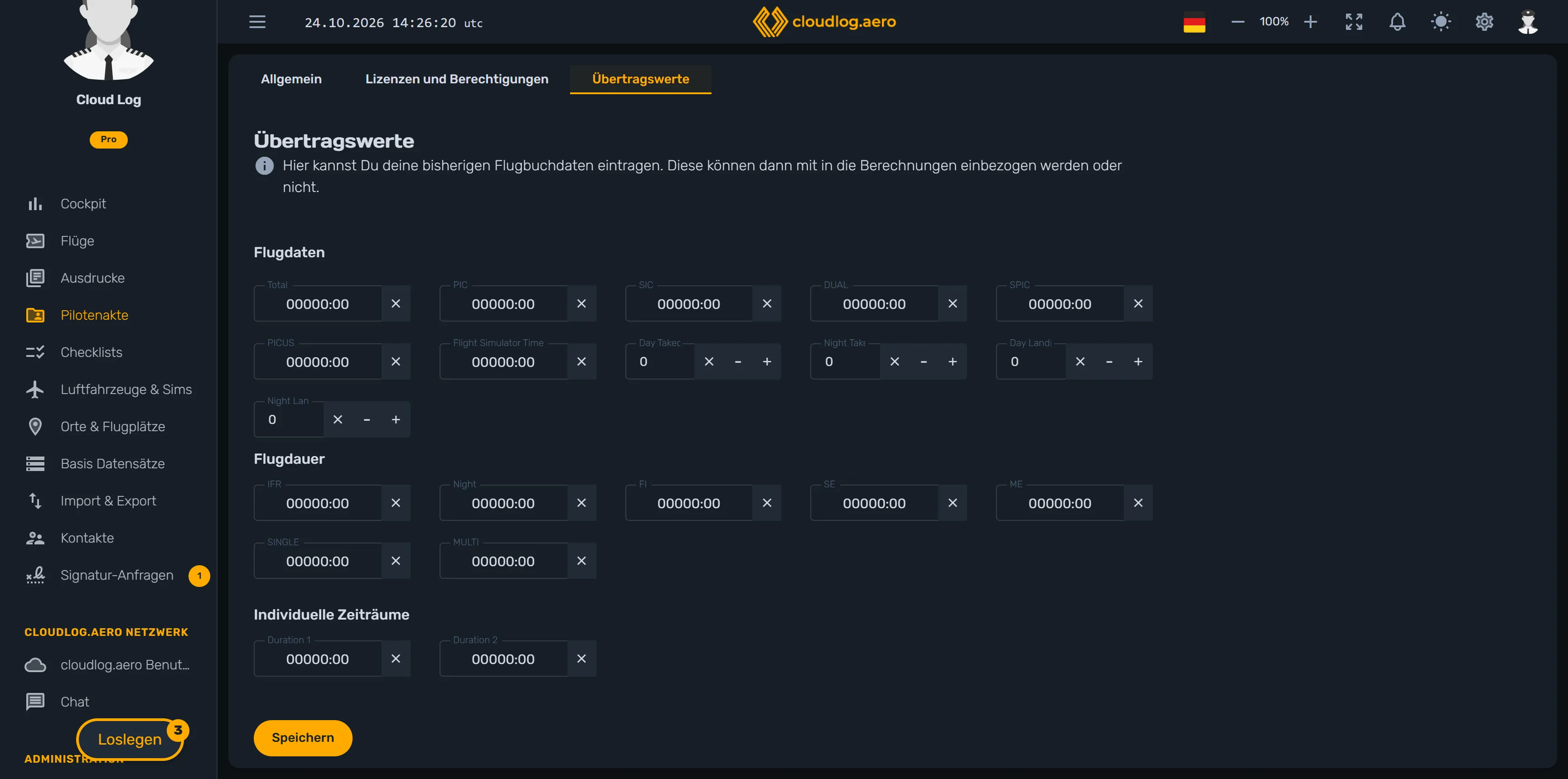
8. Store carryover values
If you logged flight hours before cloudlog.aero, you enter the totals from your previous logbook in the Carryover Values tab. You record them using the same fields as for a flight, for example total time, PIC, co-pilot, instrument time, night time, and takeoffs and landings. Use Save to apply the values. When exporting a PDF under Printouts, you can activate the Logbook Carryover Values switch, and they will be included as previous totals.
Keeping an eye on validity and notifications
In the list, each entry shows the issue date and the expiry date. The expiry date carries a color marker:
- Valid (green): The entry is still valid for at least one more month.
- Expiring soon (yellow): The entry expires in less than a month.
- Expired (red): The expiry date is in the past.
Entries without an expiry date show no marker.
In addition, cloudlog.aero checks licenses, medicals and ratings that have an expiry date and creates a notification under System Notifications ahead of expiry, by default about 30 days in advance. Entries that have already expired are reported as well. If you have already entered the renewal as a new period, cloudlog.aero no longer reports the old entry.
Tips
- The open tab is shown in the address bar of the page. So you can bookmark a page such as “Medicals”. A link without a tab always opens General.
- Old bookmarks to the former pages for licenses, medicals and ratings automatically lead to the pilot file.
- You can delete an entry using the trash icon in the header of the form. Before that, cloudlog.aero asks whether you really want to delete it.
Frequently asked questions
- The “Licenses and ratings” tab is missing. It only appears if your membership includes the pilot file. “General” and “Carryover Values” are always visible.
- I only see EASA, but I need FAA. Activate FAA in the settings under Operating mode. With both rule sets, the Rule set switch appears.
- The “Language proficiency” section is missing. It only applies to EASA. Select the EASA rule set.
- I can’t save the address. A required field is missing, or you haven’t changed anything yet. Only the company is optional.
- I get a notification about an expired rating even though I renewed it. Enter the renewal as a new validity period of the same rating, and the old entry counts as superseded.
Conclusion
The pilot file holds the documents you often need besides your flight times. First enter your operating mode, address and signature, then your licenses, medicals, ratings and, if applicable, language proficiency with their expiry dates. Once the data is maintained, cloudlog.aero warns you about expiring entries, and your address, signature and carryover values are ready for the logbook PDF.
No account yet? Set up your digital logbook at app.cloudlog.aero.